No app
Scan and start
Guests open the camera in their phone’s browser. No app download needed.
QR code wedding photos start with a simple scan. Guests open your PopCam camera, take their photos and add them to your event’s private album. Place the code where people will see it, from the welcome sign to the reception tables.
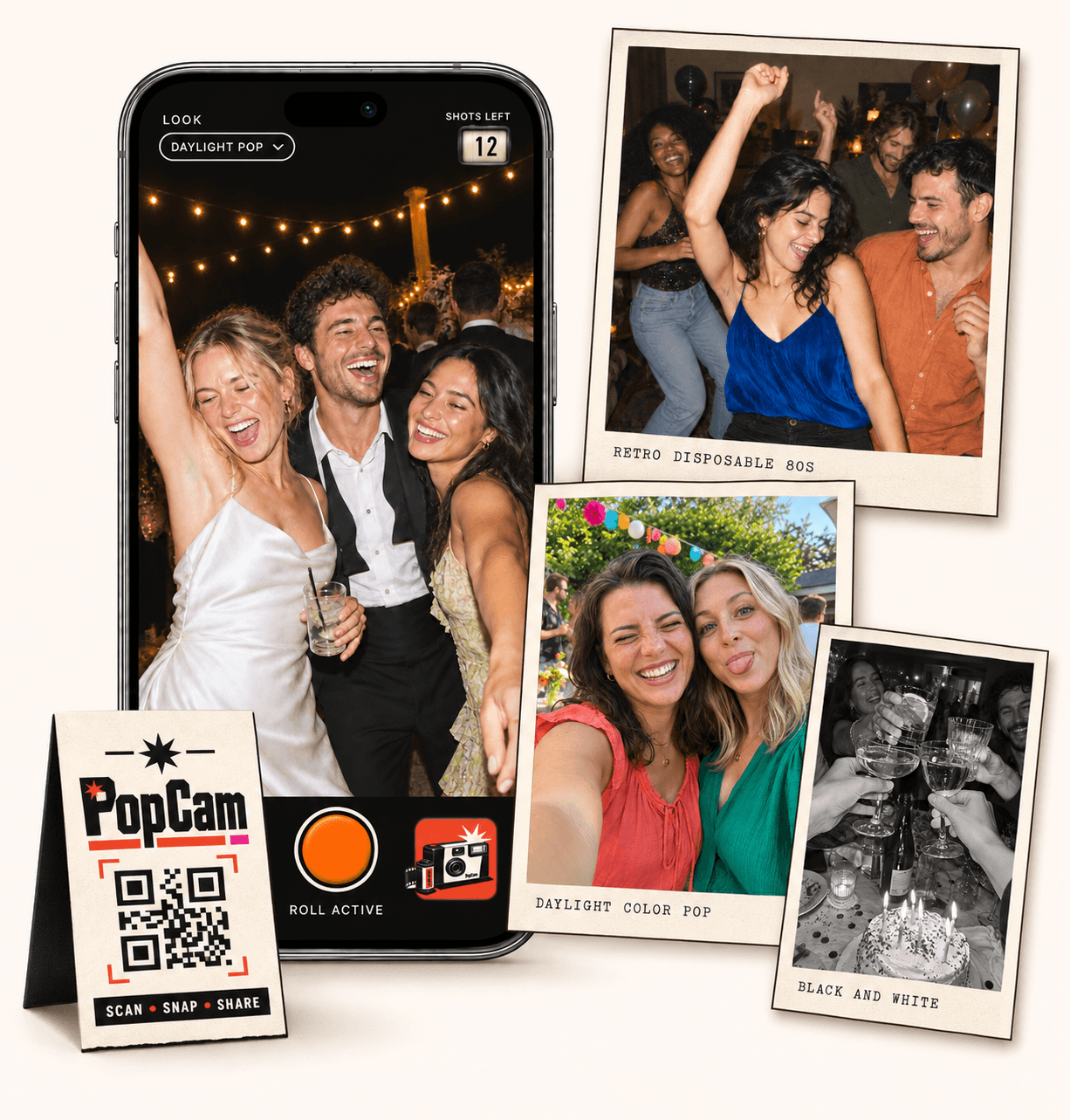
No app
Guests open the camera in their phone’s browser. No app download needed.
12 or 24
Choose a photo allowance that fits your celebration. Guests see their remaining shots.
Private
Collect uploaded PopCam photos in an album you share through its own link.
Review
Use your host panel to review photos and plan when the album opens.
Create your wedding event, choose its package and complete activation. Your host panel provides the guest camera link and its QR code, ready to share with the people attending.
The code takes guests to your event’s camera. Use your own event code in wedding materials; the demo code is for trying PopCam before you set up the celebration.
Scan. Snap. Try it.
This code opens the demo. Your wedding gets its own QR code when you create and activate your event.
Open demo on this phoneHow it works
Before
Create and activate your event. Choose the roll, photo look and album reveal, then share your wedding QR code.
During
Guests scan, open the camera and take their photos. Their uploaded shots come together in your wedding album.
After
Review the collection before your chosen reveal time. Share the album link so everyone can enjoy the memories.
A code is easier to use when it appears where guests have a moment to stop and read. A few well-placed copies can introduce the camera at different points in the evening.
Introduce the camera as guests arrive, with a short line explaining that the photos join your wedding album.
Place a card where guests can reach it without moving flowers, glasses or centerpieces.
Use a spot with enough light and room for someone to pause, scan and open the camera.
Get your QR image and printable cards from the host panel. Use the guest camera QR in your table cards or add it to a welcome-sign design that matches the wedding.
Keep the code clear, high-contrast and surrounded by empty space. Before printing the full batch, scan a sample at its intended size and viewing distance.
Put a short invitation beside the code: “Scan to open our wedding camera. Take a few photos and help us remember the day.” Guests should know what will happen before they point their phone at it.
Add the guest link to a message as well. People reading on their phone can tap that link directly, while guests at the tables can scan the printed code.
Check the finished materials at the venue before guests arrive. Test access and camera permission on the phones you have available, and check the Wi-Fi or mobile signal in the reception area.
Confirm that the printed code opens your wedding event, not the public demo or a host management link.
Scan the final print in its stand or frame, watching for glare, low light or a code that is too small.
Confirm your event date, guest capacity and reveal time before placing the cards on the tables.
Wedding packages
Choose your guest count and a roll of 12 or 24 photos per guest. Each package includes your event camera, QR code, photo filters and private album.
Prices in Mexican pesos (MXN) · One payment per event
Events
Events Plus
Choose a package to continue with your wedding details. You can review your selection before payment.
The code opens your PopCam guest camera link in the phone’s browser. Guests follow the joining steps, allow camera access and take photos for your event while its capture window is open.
Yes. Use the same event QR code across your table cards, signs and other guest materials so the photos all belong to your wedding event.
Yes. Share the guest camera link in a message. Tapping the link is especially useful when someone is already viewing the invitation or QR image on the phone they want to use.
A phone may read the printed code without a connection, but opening the PopCam event and uploading photos require internet access. Check the venue’s signal and give guests Wi-Fi details if needed.
Choose your package, set the look, and get ready to share your camera.