No app
Scan and start
Guests open the camera in their phone’s browser. No app download needed.
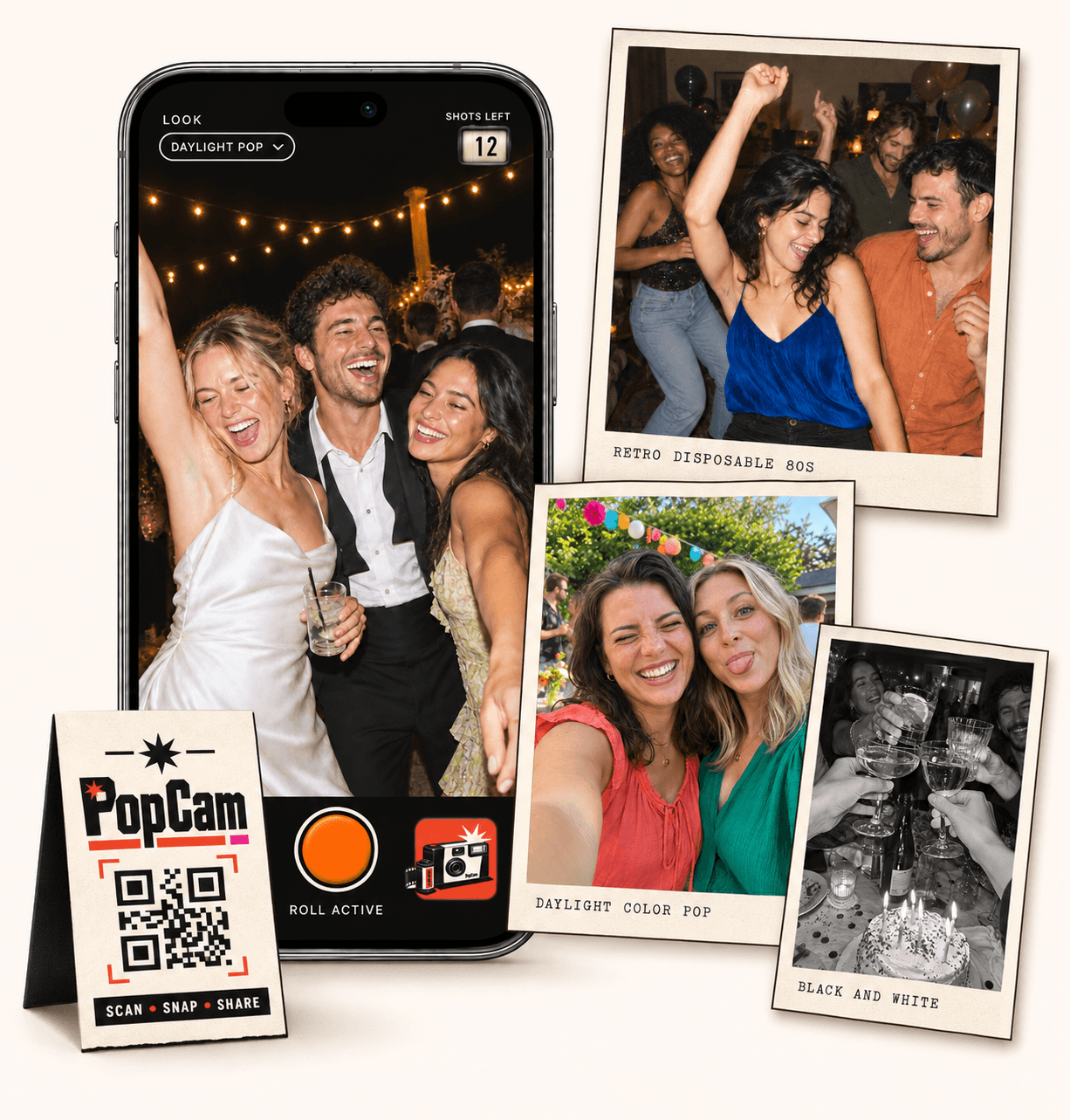
Corporate event photo sharing brings the team’s moments into one collection. PopCam gives attendees a browser camera through your event QR, with 12 or 24 photos each and no app download. Invite people to capture the gathering, review the photos and choose when the shared album opens.
No app
Guests open the camera in their phone’s browser. No app download needed.
12 or 24
Choose a photo allowance for your event. Guests see their remaining shots as they take photos.
Private
Collect uploaded PopCam photos in an album you share through its own link.
Review
Use your host panel to review photos and plan when the album opens.
A company gathering has moments beyond the scheduled presentation: colleagues meeting in person, a team celebrating a milestone or people reconnecting over a meal. Guest photos can add those informal perspectives to the event’s memories.
Use PopCam for the social side of a team day, company anniversary or holiday party. Keep participation optional and explain who the album is intended for before asking attendees to take pictures.
How it works
Before
Create and activate your event. Choose the roll, photo look and album reveal, then share your QR code.
During
Guests scan, open the camera and take their photos. Uploaded shots come together in your event album.
After
Review the collection before your chosen reveal time. Share the album link so your guests can enjoy the memories.
Share the event link in the attendee message and put the QR on a welcome sign or table card. People open the camera on their own phones, allow browser camera access and start taking new photos.
A short prompt such as “Take a photo with someone you worked with this year” gives colleagues an easy starting point. A roll of 12 or 24 photos keeps participation bounded rather than turning it into another assignment.
Fix one photo filter for the event if you want a consistent mood, or allow attendees to choose their own look. Use immediate reveal for an available album or schedule the collection to open after the gathering.
The host review panel gives the organizer a place to check the photos. Share the finished album with a thank-you message or your event recap once it is ready.
Ask attendees to respect colleagues’ preferences and avoid photographing screens, badges or materials that should stay confidential. If you plan to use a photo in external communications, follow your organization’s permission process before publishing it.
PopCam’s album is shared by link, and recipients can forward it. It is not a company identity system or a secure document room; choose it for photos you are comfortable sharing with the intended event audience.
Choose a package for the number of attendees who will join the camera. Test the demo on a phone and check the venue’s network: photos require a connection to upload, and guests should confirm upload completion before closing their browser.
PopCam handles photos captured in its camera. Arrange professional coverage, video collection, presentation recording or a live projected slideshow separately if your event needs those services.
Event packages
Choose your guest count and a roll of 12 or 24 photos per guest. Each package includes your event camera, QR code, photo filters and private album.
Prices in Mexican pesos (MXN) · One payment per event
Events
Events Plus
Choose a package to continue with your event details. You can review your selection before payment.
Team celebrations, company anniversaries, office parties and informal gatherings are natural fits. The experience centers on attendees taking a limited roll of photos and sharing an event album.
No. PopCam runs in the phone browser after attendees open your event link or QR. Browser camera permission and connectivity for uploads are required.
The album uses link access, not company-domain verification or single sign-on. Share the link with the intended audience and remember that recipients can forward it.
PopCam provides a guest camera and an album, not a live projected slideshow. Immediate reveal makes the album available according to your settings; it does not add a presentation-wall feature.
Choose your package, set the look, and get ready to share your camera.