No app
Scan and start
Guests open the camera in their phone’s browser. No app download needed.
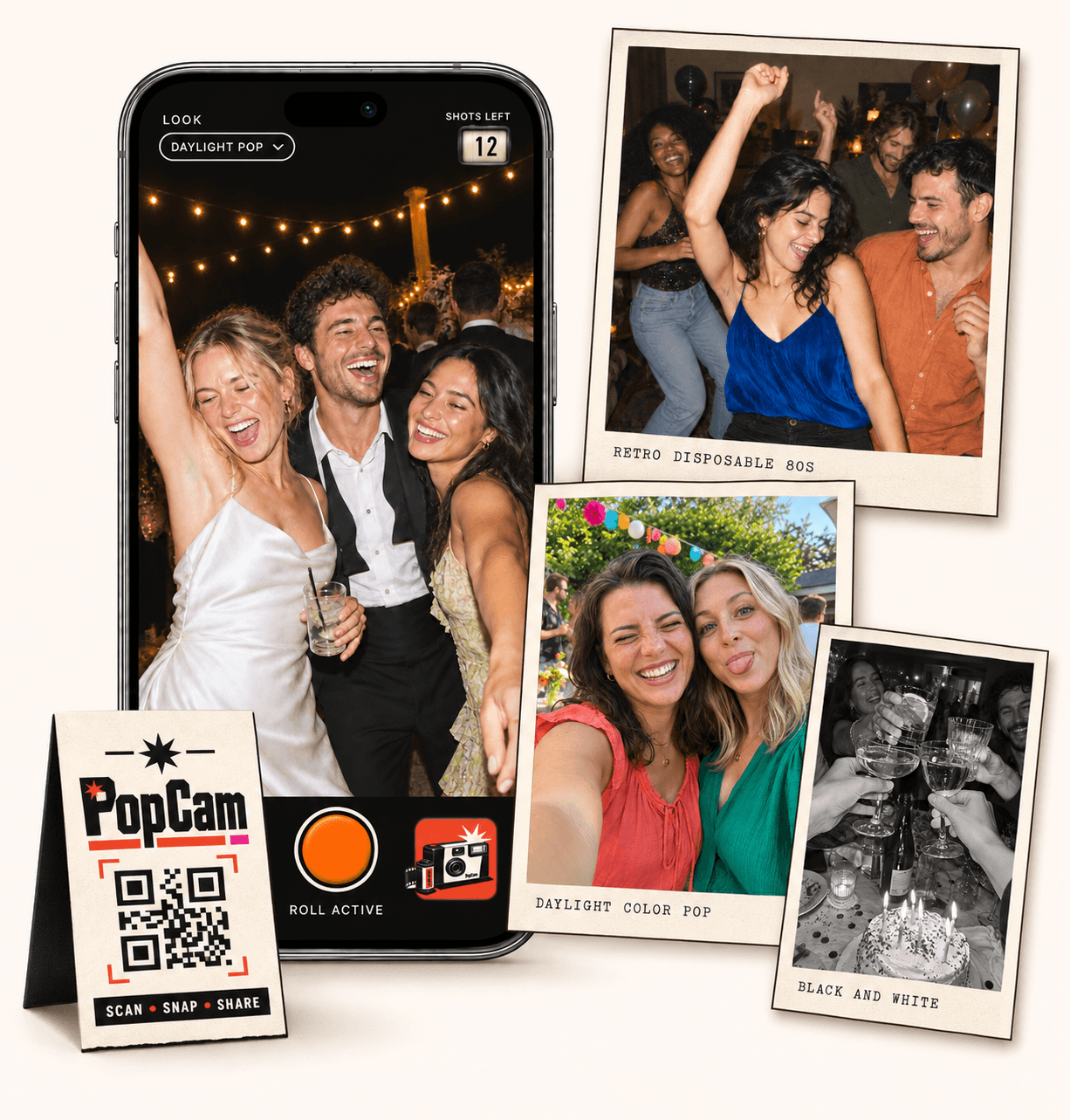
QR code photo sharing makes it easy to invite guests into the picture. With PopCam, your event QR opens a camera in their phone browser, where they take new photos with a limited roll. Uploaded shots join one album, ready to view when you choose to reveal it. No app download needed.
No app
Guests open the camera in their phone’s browser. No app download needed.
12 or 24
Choose a photo allowance for your event. Guests see their remaining shots as they take photos.
Private
Collect uploaded PopCam photos in an album you share through its own link.
Review
Use your host panel to review photos and plan when the album opens.
Your guest uses their phone’s QR scanner, follows the event link and allows camera access. From there, they take pictures inside PopCam. The code is the doorway to that experience; it does not automatically copy photos from someone’s phone.
The host sets a roll of 12 or 24 photos per guest. A shots-left counter makes the allowance visible, while your filter settings determine whether guests see one fixed look or can choose their own.
How it works
Before
Create and activate your event. Choose the roll, photo look and album reveal, then share your QR code.
During
Guests scan, open the camera and take their photos. Uploaded shots come together in your event album.
After
Review the collection before your chosen reveal time. Share the album link so your guests can enjoy the memories.
Choose your package and event settings, then use the QR created for that event. Scan it from another phone before putting it on signs or table cards, and check that it opens the right celebration.
The demo QR is for trying PopCam. Your real event needs its own QR so guest photos go to the intended album with your chosen settings.
Scan. Snap. Try it.
This code opens the demo. Your event gets its own QR code when you create and activate it.
Open demo on this phonePeople are more likely to understand a code when the sign explains what happens next. A line such as “Scan to take a few photos for our event album” sets the expectation before anyone opens their camera.
Introduce the camera as guests arrive, with the QR at a comfortable scanning height.
Give people a place to join while they pause, chat and notice the people around them.
Send the direct guest link. It is easier to tap a link than scan a code displayed on the same phone.
Print the code with good contrast and leave space around it. Test the actual printed card at the distance guests will use, especially if your design places it on a textured background.
Scanning is only the first step. The browser needs camera permission, and photos need a connection to upload. Ask guests to check that uploads have finished before they leave the camera.
Set immediate or scheduled album reveal and review the photos from your host panel. When the album is available, share its link with the group so guests can see the celebration from other points of view.
Treat both the guest camera link and the album link as links people can forward. Place and share them with the audience you intend to invite.
Event packages
Choose your guest count and a roll of 12 or 24 photos per guest. Each package includes your event camera, QR code, photo filters and private album.
Prices in Mexican pesos (MXN) · One payment per event
Events
Events Plus
Choose a package to continue with your event details. You can review your selection before payment.
No. Guests can also open the event’s direct guest link. Use the QR for printed materials and the link for messages viewed on a phone.
No. It opens the PopCam camera so you can take new photos for that event. It does not import your phone gallery.
No physical cards are required to use the camera. You can place your event QR on your own printed signs or cards, and share the guest link digitally.
Yes. The same QR-to-camera experience works for weddings as well as parties and other events. Choose the guest capacity and roll size for your celebration.
Choose your package, set the look, and get ready to share your camera.